

Zero to Hero –What’s up with Defender for Endpoint Passive and EDR Block Mode – Complete Guide
Table of Content
Introduction
In many projects, Microsoft Defender for Endpoint is introduced into an already existing security landscape.
From my experience, I most often see MDE being rolled out in environments where a third‑party antivirus or even another EDR solution is already deployed and operational. In these cases, Defender for Endpoint is capable of not directly replace the existing protection immediately, but to integrate alongside it.
A common pattern I encounter is a transition phase, where Defender runs in parallel to the existing AV or EDR solution. This allows security teams to:
Gain visibility and telemetry from Defender for Endpoint early on
Validate operational processes without cutover migration
Then gradually shift towards Defender for Endpoint as the primary solution
Instead of a hard cutover, Defender can be introduced more smoothly
This parallel operation is made possible through Defender for Endpoint’s operational modes and its built‑in antivirus compatibility mechanisms most notably Passive mode and EDR in Block mode.
In this article, we take a closer look at these modes and explain how Defender for Endpoint behaves in such coexistence and transition scenarios.
Defender for Endpoint AV Compatibility
In a lot of enterprises, Defender for Endpoint is introduced alongside an existing antivirus or EDR solution, mostly during a migration phase. Instead of enforcing an immediate replacement, Microsoft separates protection into layers, allowing Defender to coexist without causing conflicts.
At a high level, this works because Microsoft distinguishes between:
Microsoft Defender Antivirus (AV)
The local prevention and enforcement engine.Microsoft Defender for Endpoint (MDE)
The EDR telemetry pipeline, analytics, and response platform.
This separation allows Defender for Endpoint to provide visibility, detection, and investigation, even when Defender AV is not the primary antivirus on the system.
Why running in parallel makes sense (under certain conditions)?
From my experience, parallel operation is one of the most practical ways to introduce Defender for Endpoint into mature environments. This gives the opportunity to smoothly transition to MDE as their primary solution.
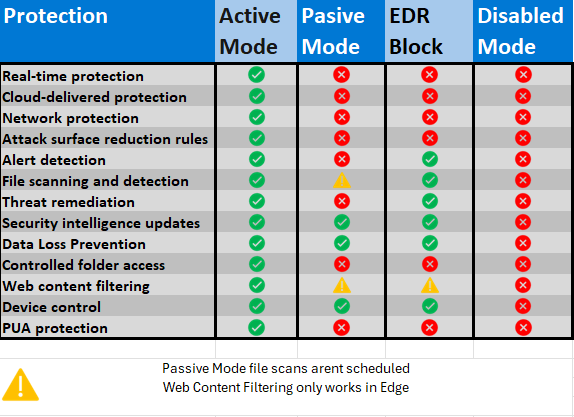
Microsoft Defender for Endpoint (Defender EDR) operates in three different modes: Active mode, Passive mode, and EDR Block mode.
Active Mode: In this mode, Defender for Endpoint is fully operational and actively monitors, detects, and responds to threats on endpoints. It provides real-time protection, executes automated investigations, and applies remediation actions to address identified threats. This is the default and most comprehensive mode, ensuring optimal security.
Passive Mode: When running in Passive mode, Defender for Endpoint collects and reports data but does not actively intervene in threat remediation. This mode is typically used in environments where another security solution is already active, allowing Defender for Endpoint to coexist without conflicting with the other solution. It still provides visibility and can be used for monitoring and auditing purposes.
EDR Block Mode: EDR Block mode allows Defender for Endpoint to block malicious activities and files even if the primary antivirus solution misses them. This mode enhances security by leveraging Endpoint Detection and Response (EDR) capabilities to prevent threats that might bypass other defenses. It is recommended to use this mode on top of passive mode alongside the existing antivirus solution to provide an additional layer of protection by blocking high-confidence malicious behaviors and files. It is recommended to enable EDR block mode even though running in active mode, to ensure that all capabilities are in place.
Disabled: When disabled or uninstalled, Microsoft Defender Antivirus isn't used. Files aren't scanned, and threats aren't remediated.
Comparison of Defender operational states and capabilities
How to check what’s the current AV State
Verify the actual Defender Antivirus state on the endpoint using PowerShell:
The key property to look at is:
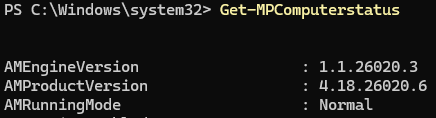
Values you will encounter when av is enabled:
Normal
Defender Antivirus is running in Active Mode and is the primary AV.Passive Mode
Defender Antivirus is running in passive mode.EDR Block Mode
Defender AV is in passive mode, but EDR in Block Mode is enabled and can remediate threats post breach.

Alternatively the status can be observed in the defender portal (security.microsoft.com)
Considerations when running parallel mode
Running Defender for Endpoint side by side with another security solution is supported, but there are a few general things to consider:
Avoid duplicated capabilities
Running multiple tools that perform the same function (for example real‑time scanning or behavioral blocking) can cause performance issues and product conflicts.
Avoid duplicated capabilities and define clear responsibility
Running multiple security tools that perform the same active functions, such as real‑time scanning or behavioral blocking, can lead to performance degradation and product conflicts. In parallel scenarios, there should be one clearly defined master.
Defender for Endpoint can be configured to reduce functional overlap by disabling or limiting capabilities like EDR in Block Mode, automated investigation and remediation, PUA protection, or network discovery and response. Responsibility for these functions should always rest with the solution that actively provides them.
When Microsoft Defender Antivirus is set to Passive Mode, it does not perform active protection or blocking. Malware prevention responsibility shifts entirely to the primary anti‑malware solution.
Configure mutual exclusions (carefully)
Mutual exclusions help avoid performance and compatibility issues, but they also reduce inspection coverage.
When exclusions are in place:
Each vendor is trusted to protect its own components
Protection gaps must be actively managed as solutions change
Generally recommended exclusions for third-party AV when running Defender side-by-side
| OS | Exclusions |
|---|---|
|
Windows 11 Windows 10, version 1803 or later Windows 10, version 1703 or 1709 |
|
|
Windows Server 2022 Windows Server 2019 Windows Server 2016 Windows Server 2012 R2 Windows Server, version 1803 |
On Windows Server 2012 R2 and Windows Server 2016 running the modern, unified solution, the following exclusions are required after updating the Sense EDR component using KB5005292:
|
|
Windows 8.1 Windows 7 Windows Server 2008 R2 SP1 |
Note: Monitoring Host Temporary Files 6\45 can be different numbered subfolders.
|
For mutual exclusiosn for macos/linux take a look at: Migrate to Microsoft Defender for Endpoint - Setup - Microsoft Defender for Endpoint | Microsoft Learn
Passive Mode
Defender Passive Mode allows Microsoft Defender Antivirus to run alongside another primary anti‑malware solution without performing real‑time protection or blocking.
When Defender AV enters passive state:
It does not provide real‑time protection
No active malware blocking or remediation
Still collects telemetry data
Designed explicitly for coexistence and transition scenarios
Endpoint DLP functionalities operate normally
Microsoft Defender Antivirus continues to receive updates
EDR Block mode is available for post-breach protection
It is a non‑enforcing state, intended to avoid conflicts while another solution is responsible for prevention.
Requirements
Device is onboarded to Microsoft Defender for Endpoint
Microsoft Defender Antivirus is installed and enabled
Windows Security Center Service must be enabled.
Supported operating systems:
Operating system: Windows 10 or newer; Windows Server 2019 and later, Windows Server, version 1803, or newer, Azure Stack HCI OS, version 23H2 and later or
(Windows Server 2012 R2 and Windows Server 2016 if onboarded using the modern, unified solution).Windows 7 passive mode is supported only using new deployment tool (limitations might apply)
Another non-Microsoft antivirus/antimalware product must be installed and used as the primary antivirus solution.
Enable Passive Mode
Windows Clients (Windows 10 / 11)
On Windows clients, Passive Mode is usually automatic.
When a third‑party antivirus is installed and registered with Windows Security Center
Defender Antivirus automatically switches to Passive Mode
No manual configuration is required in most cases
| AV solution | Onboarded to MDE | AV state |
|---|---|---|
| Microsoft Defender AV | Yes | Active mode |
| Third-party AV | Yes | Passive mode (automatically) |
Windows Servers
On Windows Server, Passive Mode must be configured explicitly/manually.
Before onboarding the server to Defender for Endpoint, set the following registry key:
EDR Block Mode
What is EDR in Block Mode
Endpoint Detection and Response (EDR) in block mode provides post-breach protection mainly on devices where Microsoft Defender Antivirus is not the primary AV and is running in passive mode.
This typically applies to environments where a third-party antivirus solution is active.
EDR in block mode allows Defender for Endpoint to actively remediate threats based on EDR detections, even if the primary antivirus missed them. In other words, Defender can still block and clean up a bit.
Requirements
Microsoft Defender for Endpoint Plan 2
Operating system: Windows 10 or newer; Windows Server 2019 and later, Windows Server, version 1803, or newer, (Windows Server 2012 R2 and Windows Server 2016 if onboarded using the modern, unified solution).
Device must be onboarded to Microsoft Defender for Endpoint
Microsoft Defender Antivirus must be installed and running in active or passive mode
Cloud-delivered protection(MAPS) must be enabled
Defender platform version ≥ 4.18.2001.10 & Defender engine version ≥ 1.1.16700.2
Enable EDRBlock Mode
EDR in block mode can be enabled tenant-wide or per targettted, depending on the configuration method.
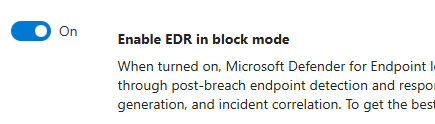
Enable via Microsoft Defender Portal (recommended)
1. Go to https://security.microsoft.com
2. Navigate to: Settings → Endpoints → General → Advanced features
3. Enable EDR in block mode
Enable via Microsoft Intune (CSP/OMA-URI)
EDR in block mode can be targeted to specific device groups using the Intune CSP:
CSP path: ./Device/Vendor/MSFT/Defender/Configuration/PassiveRemediation
Use a custom Intune policy (OMA-URI)
For more information about CSP path take a look at: Defender CSP | Microsoft Learn
This option is available starting with Defender platform version 4.18.2202.X.
Enable via Group Policy
Open Group Policy Management Console
Navigate to:
Computer Configuration → Administrative Templates → Windows Components → Microsoft Defender Antivirus → FeaturesSet Enable EDR in block mode to Enabled
Apply the policy
Conclusion
Microsoft Defender for Endpoint can work well in parallel with other security solutions, if you understand the operating modes.
Passive Mode enables coexistence, but provides no active protection.
EDR in Block Mode adds post‑breach enforcement, but not full capabilities.
Active Mode is the only state where Defender delivers complete protection.
From my experience, problems arise when teams assume protection without verifying the actual state.
Always be clear about who detects, who blocks, and who owns prevention.
If that is well defined, Defender for Endpoint becomes a reliable and predictable part of your security architecture.