

Introduction
Welcome back to the Zero to Hero Series.
In the previous article, we focused on Microsoft Defender Antivirus (AV) and Next Generation Protection (NGP). Those capabilities provide the foundation for detecting and blocking malicious files, processes, and behaviors.
But modern attacks often abuse legitimate tools such as PowerShell, Office applications, script engines, or built-in Windows components. This is where Attack Surface Reduction (ASR) comes in.
ASR rules are designed to block common attacker techniques before they can be executed. Instead of focusing on whether something is malicious, ASR focuses on whether a potentially risky action should be allowed at all.
ASR is key security control available in Microsoft Defender for Endpoint, yet it is still underutilized in many environments. When properly configured, it can stop ransomware, malware delivery, and post-exploitation activity long before EDR detection and response become necessary.
In this article, we'll explore Microsoft Defender Attack Surface Reduction for Windows!
Defender for Endpoint Attack Surface Reduction
What are Attack Surface Reduction (ASR) rules actually ?
Attack Surface Reduction rules are a Microsoft Defender capability designed to block or audit behaviors that are commonly abused by attackers during the different phases of an attack. Instead of focusing on identifying known malware, ASR focuses on preventing risky activities that are frequently seen in modern attack chains. Examples include Office applications spawning child processes, script interpreters launching downloaded content, credential theft attempts against LSASS, or the execution of obfuscated scripts.
One of the biggest advantages of ASR is that it helps protect against techniques rather than individual malware samples. Even if a threat is completely unknown, the attack often still requires certain behaviors to succeed. ASR aims to block exactly these behaviors before they can be abused.
From my experience, ASR is one of the most effective preventative security controls within Defender for Endpoint. Many organizations invest heavily in detection and response capabilities, but one goal should always be to prevent an attack from succeeding in the first place. Properly configured ASR rules can significantly reduce ransomware, malware delivery, credential theft, and post-exploitation activities long before an EDR alert is generated.
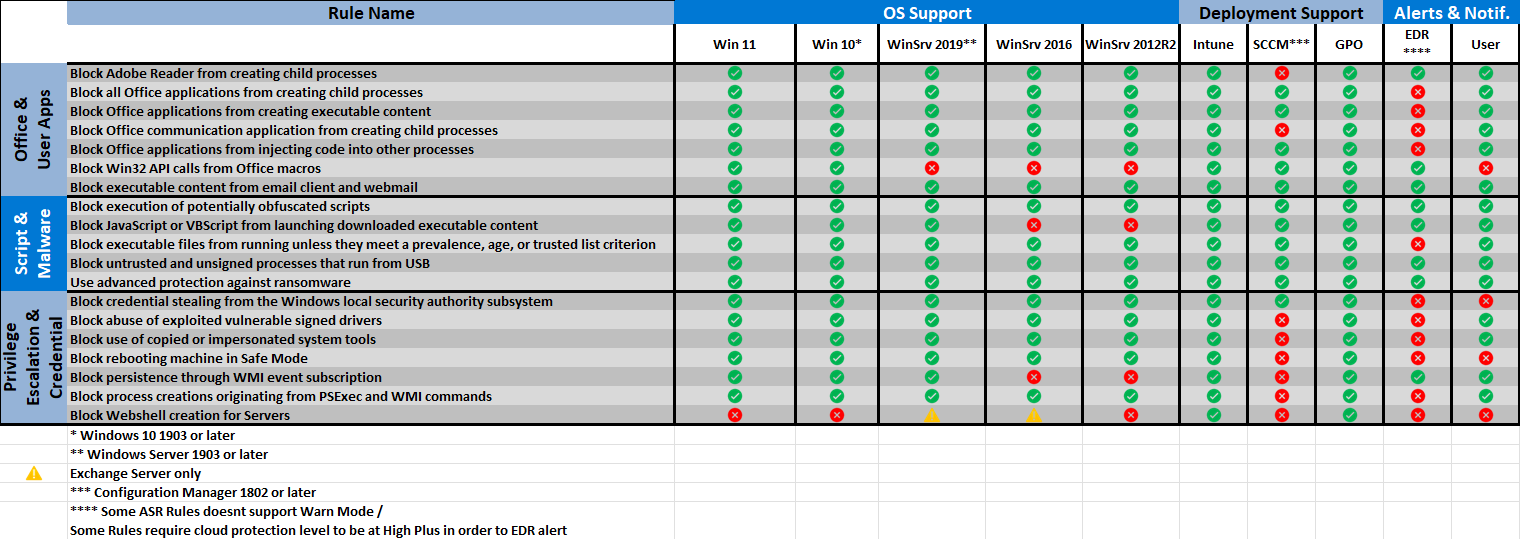
Microsoft currently provides a broad set of ASR rules covering different attack categories The following matrix provides an overview of the currently available ASR rules, supported operating systems, deployment methods, and alerting capabilities.
Management Options for Defender ASR
Similar to Defender Antivirus, Microsoft Defender ASR can be managed through multiple configuration channels. The most common options are:
Microsoft Intune (MDM)
Group Policy (GPO)
Microsoft Configuration Manager (SCCM)
Security Settings Management via Defender for Endpoint
The following sections shows the available management approaches, their strengths and limitations
Intune
Microsoft Intune is the modern and preferred approach for managing Attack Surface Reduction (ASR) rules, especially on Windows clients. (Same as for AV Config)
From my experience, if you are already using Microsoft 365 and Defender XDR, Intune should be your first choice. It supports all ASR rules, all deployment modes (Audit, Warn, Block), and usually receives support for new Defender capabilities first.
How Defender ASR is configured in Intune
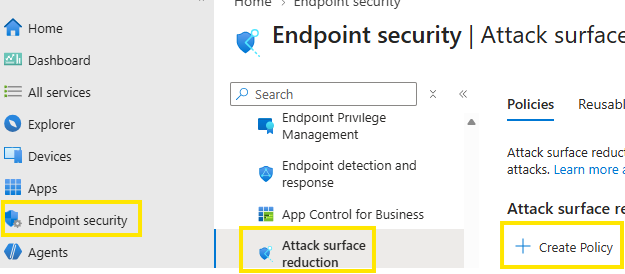
Navigate to:
Microsoft Intune Admin Center
→ Endpoint Security
→ Attack Surface Reduction
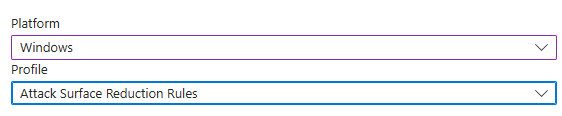
→ Create Policy “Attack Surface Reduction”
From there, you can configure each ASR rule individually and choose whether it should run in Audit, Warn, Block, or Disabled mode.
GPO
Group Policy (GPO) is the classic way to manage Attack Surface Reduction rules in traditional Active Directory environments.
Although many organizations are moving towards Intune, GPO is still commonly used for domain-joined devices and remains fully supported for ASR rule deployment. From my experience, GPO is often an option when a company has not yet adopted Intune or is still heavily dependent on-premises management.
How Defender ASR is configured via GPO
Defender AV settings are configured under:
Computer Configuration
└── Administrative Templates
└── Windows Components
└── Microsoft Defender Antivirus
└── Microsoft Defender Exploit Guard
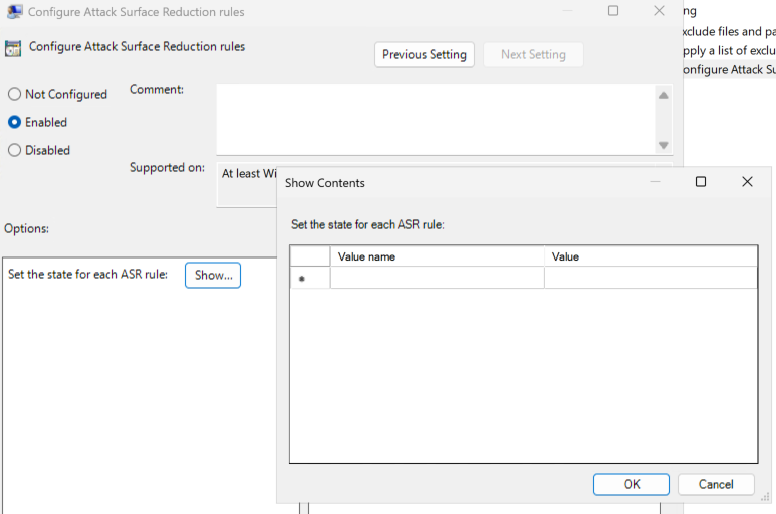
Attack Surface Reduction -> “Configure Attack Surface Reduction rules”
From there, you can configure individual ASR rules and define whether they operate in Audit, Warn, Block, or Disabled mode.
For a list of all GUIDs , take a look at: ASR rules overview - Microsoft Defender for Endpoint | Microsoft Learn
Configuration Manager
Microsoft Configuration Manager (SCCM/MECM) can also be used to deploy Attack Surface Reduction rules, but I generally do not recommend it for new ASR deployments.
From my experience, Configuration Manager is often still present in large enterprise environments, but when it comes to Defender security configurations, it has fallen behind. Not all ASR rules are supported, and support for new capabilities typically arrives later or not at all.
When reviewing the ASR support matrix, you will notice that several rules are not supported through Configuration Manager, while Intune/GPO provides support across the complete ASR rule set.
How Defender ASR is configured via SCCM
Navigate to:
Assets and Compliance
→ Endpoint Protection
→ Windows Defender Exploit Guard
→ Attack Surface Reduction
From there, ASR policies can be configured and deployed to collections.
Security Settings Management for Defender for Endpoint
Security Settings Management for Defender for Endpoint (SSM) is, together with Intune, my preferred approach for managing Attack Surface Reduction rules.
The biggest advantage is that devices can receive supported Defender security policies without requiring full Intune enrollment. This makes SSM particularly valuable for servers and hybrid environments that are onboarded to Defender for Endpoint but are not managed through Intune MDM.
From my experience, SSM is one of the most powerful capabilities in the Defender ecosystem. It allows organizations to manage Defender security settings across clients and servers through a unified management experience while reducing the dependency on traditional management solutions such as GPO or Configuration Manager.
How does it work?
At a high level, ASR policies are still created in Microsoft Intune (like described earlier), but they are delivered through the Defender for Endpoint management channel instead of the traditional Intune MDM channel.
Since I already explained this approach in a previous article, I recommend reviewing that section for a better understanding:
ASR Exclusions
Before moving on to reporting, there is one additional topic worth discussing: ASR exclusions.
Regardless of whether you manage ASR through Intune, Group Policy, Configuration Manager, or Security Settings Management, every management platform provides a way to configure exclusions. In real-world deployments, exclusions are sometimes necessary when legitimate business applications trigger specific ASR rules.
From my experience, exclusions should always be used carefully. If an application triggers an ASR rule, the first question should be whether the behavior is actually legit. Only after validation should an exclusion be considered.
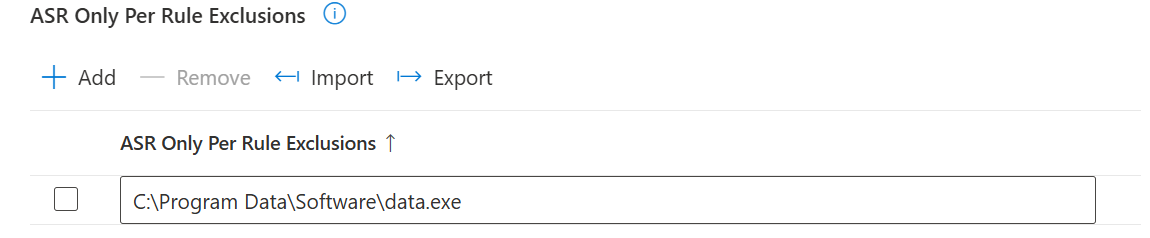
Rule-Specific Exclusions in Intune
One advantage of Microsoft Intune is its support for ASR rule-specific exclusions.
While traditional exclusions simply exclude a file or folder from ASR evaluation entirely, Intune also allows exclusions to be applied only to specific ASR rules. This provides a much more granular approach.
The configuration is performed through the same way where the ASR rules themselves are configured, so take a look up to find out how to configure ASR for your specific management approach.
Supported exclusion types include:
· File exclusions
· Folder exclusions
ASR Reporting
Many or better to say all organizations have legitimate line-of-business applications, scripts, or administrative processes that will (for sure) trigger ASR detections. That’s totally normal! This is why reporting is a critical part of every ASR deployment. It is recommended testing applicable rules in Audit Mode before moving them into enforcement.
Audit Mode allows ASR rules to generate events without actually blocking the action. This gives security teams visibility into what would have been blocked and helps identify required exclusions before users or administrators are impacted.
From my experience, a successful ASR rollout usually follows a simple approach:
Deploy ASR rules in Audit Mode
Review generated events
Create required exclusions
Repeat the process and validate their working
Then move rules into Block Mode
We are provided with multiple reporting options to support this process.
Windows EventLog
The most basic reporting option is the Windows Event Viewer.
Whenever an ASR rule is triggered, Microsoft Defender writes events into the Windows event log. These events contain details such as the affected rule, the triggering process, the target file, and whether the action was audited or blocked.
The events can be found under:
Event Viewer/Applications and Services Logs/Microsoft/Windows/Windows Defender/Operational
Events:
· 1121: Event when rule fires in block mode
· 1122: Event when rule fires in audit mode

The obvious limitation is that there is no centralized reporting. In business environments, manually checking event logs across multiple devices quickly becomes impractical. While events can be collected through SIEM solutions, most organizations will prefer the native Defender reporting approach.
Native Report
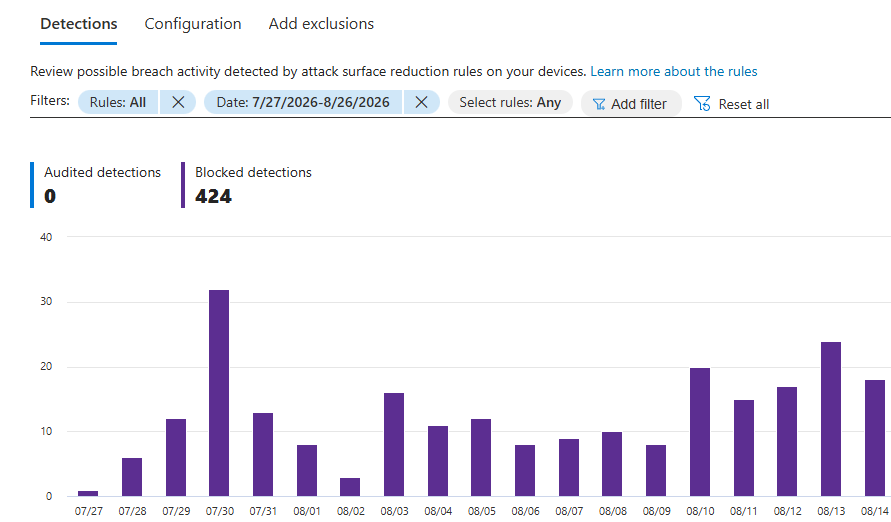
To solve the centralized visibility challenge, Microsoft provides the built-in Attack Surface Reduction Rules Report within Microsoft Defender XDR.
The report aggregates ASR events from onboarded devices and provides a centralized view of:
Audit events
Blocked actions
Triggered ASR rules
Affected devices
Affected users
File and process information
This allows administrators to quickly identify which rules generate the most activity and whether additional exclusions are required before moving rules into enforcement.
From my experience, this report should become your primary tool during an ASR rollout. You can monitor the entire deployment from a single dashboard and make data-driven decisions about when a rule is ready to transition from Audit Mode to Block Mode.
You can find the report in the security portal: https://security.microsoft.com/
Reports -> Endpoints -> Attack surface reduction rules
Defender Compliance Report
Many organizations stop after deploying ASR rules and reviewing Audit Mode findings. However, an equally important question is:
Are my ASR rules actually configured consistently across all devices?
From my experience, configuration drift is one of the most common challenges after an initial rollout. New devices are onboarded, policies change over time, exceptions are introduced, and suddenly the intended ASR baseline no longer reflects reality.
While the native ASR report provides both activity and configuration visibility, its primary focus is still Attack Surface Reduction rule events, trends, devices, and rule deployment status.
If you are looking for a more holistic view across your Defender security posture, Advanced Hunting with KQL becomes extremely valuable. By combining data from multiple Defender XDR tables, you can correlate ASR configuration with Defender Antivirus health, onboarding status, sensor health, update status, Controlled Folder Access, device metadata, and custom compliance baselines.
From my experience, the native ASR report is usually sufficient during the rollout phase when you're focused on Audit and Block events. However, once ASR becomes part of your operational security baseline, custom KQL reporting helps answer a broader question.
Defender Compliance Reporting with KQL
The following KQL query provides a consolidated compliance and configuration view across your Defender managed devices.
ASR configuration status
Defender Antivirus health
Security intelligence update state
Controlled Folder Access configuration
Device onboarding status
Custom ASR compliance evaluation
A special thanks goes to Thomas Schöner, a valued colleague and Microsoft Security expert, who created this version of this KQL query and provided the foundation for this reporting approach.
KQL Query: MDEDeviceReport
By Thomas Schöner
Conclusion
Attack Surface Reduction is one of the most valuable preventive security controls in Microsoft Defender for Endpoint. When deployed correctly, it helps stop common attacker techniques before they can lead to a compromise.
From my experience, the key to a successful ASR deployment is simple: start in Audit Mode, analyze the results, create the necessary exclusions, and then move rules to Block Mode. Combined with centralized reporting and a modern management approach such as Intune or Security Settings Management, ASR can significantly strengthen your Defender XDR security posture with relatively little effort.